A terminal is a text-based interface that allows you to interact directly with your computer’s operating system. Instead of clicking with a mouse, you type commands to navigate files, run programs, and manage system tasks.
Terminals are powerful tools for developers and system administrators because they provide precise control and automation capabilities. And once you get used to them, many people find that they're a lot easier and quicker to use than a graphical user interface (GUI).
There are many terminals - but:
- On Windows I recommend Windows Terminal
- On Linux your distro already comes with a terminal
Basic navigation
When you open a terminal, you start inside a folder - also called a directory - typically your home directory:
- On Windows it's typically
\Users\<your-username> - On Linux it's typically
/home/<your-username>
Note that Windows uses backslash while Linux uses forward slash as path separators. Many terminals will accept either, but keep it in mind.
List files and directories
To see the contents of a folder you use the ls-command:
lsIt returns something like this, depending on your system:
C:\myfolder> ls

    Directory: C:\myfolder

Mode                 LastWriteTime         Length Name
----                 -------------         ------ ----
d-----          2/5/2026  11:29 AM                Folder 1
d-----          2/5/2026  10:18 AM                Folder 2
-a----          2/5/2026  11:29 AM            442 a-file.txt
-a----         2/11/2026  10:08 AM           1141 another-file.jpg
Changing folders
To enter a folder you use the cd-command - it's short for change directory:
cd Folder1After executing this command you'll see that you've now entered that folder:
C:\myfolder\Folder1>To go back/up one level you use the command...
cd .....and you're back one level:
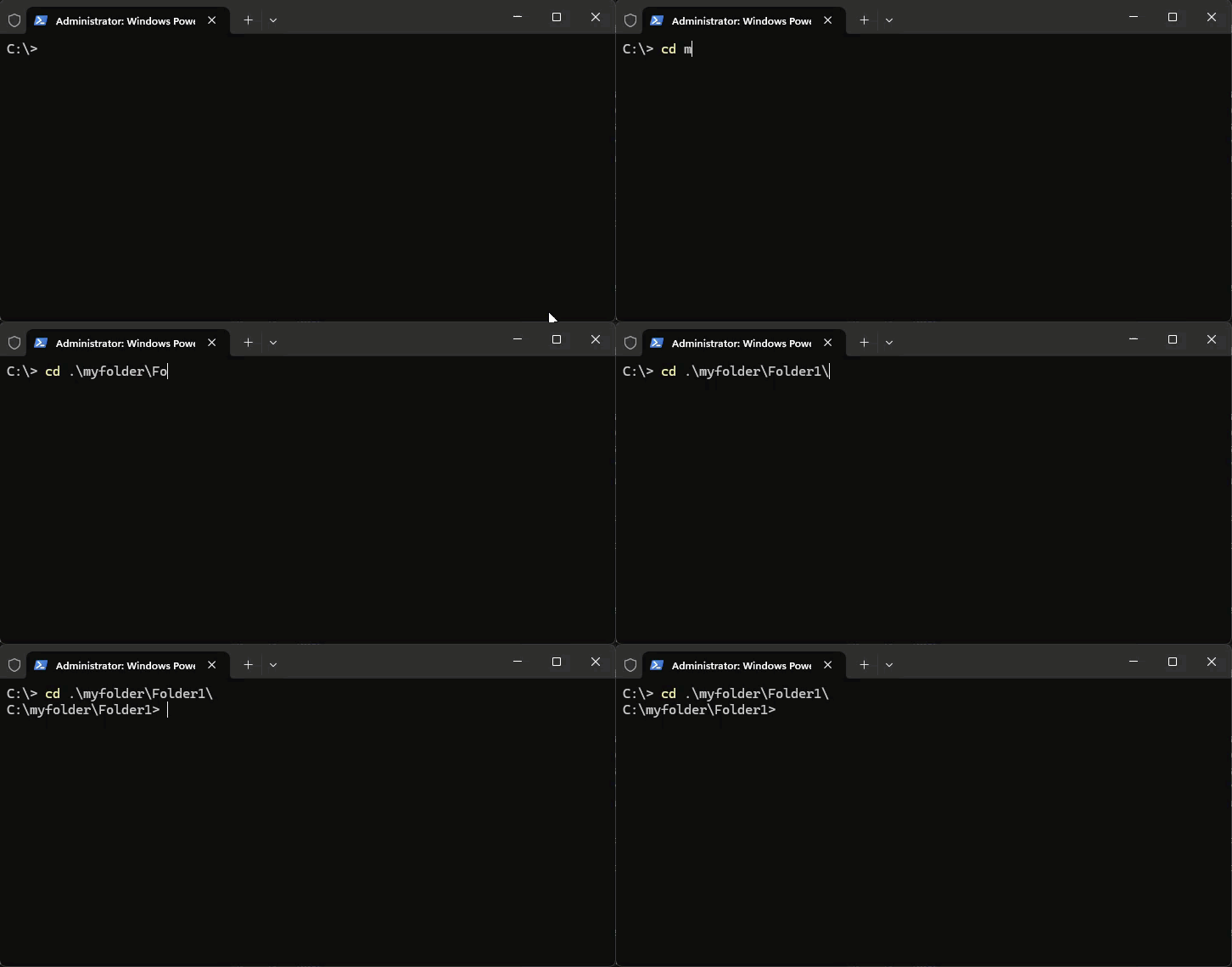
C:\myfolder>If you know which folder you want to go to, you can speed things up by using TAB to autocomplete and/or cycle through folders until you're where you want to be:
File operations
So now that you know how to navigate using the terminal, it's time to learn how to do basic operations on files and folders.
Linux only info
On Linux, you will have to preface all commands which permanently change the system - by creating files, deleting files, installing stuff, etc. - with sudo which is short for superuser do.
It grants you temporary administrator privileges - provided that your user has superuser permissions - when you type your password.
Creating folders and files
To create a folder use the mkdir-command:
mkdir myfolder2To create a text file you can use the touch command (linux) or the New-Item command (windows powershell):
#Linux

touch test.txt

#Windows PowerShell

New-Item test.txt
Copying files and folders
To copy a file use the cp-command and specify the file you want to copy and the file you want to copy the contents to:
cp test.txt newfile.txtYou can use the same command to copy the file to a specific folder:
cp hest.txt C:\myfolder\Folder2\You can also use it to copy folders/directories:
C:\myfolder> cp .\Folder1\ .\Folder3Note the use of .\ here - it specifies that the paths you're using are relative to the directory you're currently in.
Deleting files and folders
To delete a file use the rm-command:
rm test.txtTo remove a folder use the same command, but with a directive specifying that you want to remove things recursively:
rm -r myfolder2This command will remove a folder and everything inside it, so make sure that's what you want to do.
File permissions (linux)
On Linux, you may not have the correct permissions to do stuff - like read a file, write to a file, or execute a script. To find out, you can use the ls command with an -l directive to see what permissions are set for the file/folder...
ls -l...which will then return something like this:
-rw-r--r-- 1 carsten carsten 1240 Mar 2 10:15 file.txtThe thing which represents permission here is the rw-r--r-- sequence, which indicates permission for the three user groups on linux - user, group, and others. In this case, the user has read and write permission, the group read, and others read. No one has permission to execute a file (x).
To change permissions on a file - e.g. file.txt - use the chmod command with a numerical representation of the permission level you want to set, e.g.:
chmod 755 file.txtThe above provides read, write, and execute permissions to the owner - and read and execute permissions to everyone else. Common permission sets are:
| Number | Meaning |
|---|---|
| 777 | Everyone full access |
| 755 | Owner full, others read/execute |
| 700 | Owner only |
| 644 | Owner read/write, others read |
| 600 | Owner read/write only |
Linux nerd stuff
When you talk about permissions on Linux, you'll often see it represented numerically - e.g. as 755. That's because each permission is assigned a numerical value:
- read = 4
- write = 2
- execute =1
So read + write + execute = 7, read + execute = 5, read + write = 6. You can use a tool like the chmod calculator to get it right.